

Claude Code for VS Code
Claude Code is an official VS Code extension from Anthropic that brings AI-powered coding assistance directly into your IDE. The extension provides a native graphical interface for Claude Code, allowing you to review and edit AI-generated plans, accept diffs inline, @-mention files with specific line ranges, and maintain conversation history across multiple tabs.
Key Features
Section titled “Key Features”- Visual Diff Review: Review and approve code changes with inline diffs before accepting them
- @-Mention References: Reference specific files and line ranges in your prompts with
Alt+K - Plan Review: Review Claude’s planned changes before execution
- Multi-Conversation: Open multiple conversations in separate tabs or windows
- Terminal Mode: Optional CLI-style interface within VS Code
- Third-Party Provider Support: Works with Amazon Bedrock, Google Vertex AI, and Microsoft Foundry
- Customizable Layout: Drag and reposition the Claude panel anywhere in VS Code
- Keyboard Shortcuts: Quick access to Claude with
Cmd+Shift+EscorCtrl+Shift+Esc
Use Cases
Section titled “Use Cases”- Code generation and refactoring with visual diff approval
- Debugging with context-aware file references
- Code explanation for specific line ranges
- Documentation writing with workspace context
- Multi-file edits with plan review
Prerequisites
Section titled “Prerequisites”- VS Code: Version 1.98.0 or higher
- relaxAI API Key: Get your API key from relaxAI
Setup Instructions
Section titled “Setup Instructions”-
Install the Claude Code Extension
Install from VS Code:
- Press
Cmd+Shift+X(Mac) orCtrl+Shift+X(Windows/Linux) to open Extensions - Search for “Claude Code”
- Click Install
Or install directly: Install for VS Code
- Press
-
Disable Login Prompt
Since we’re using relaxAI instead of Anthropic’s API:
- Open VS Code Settings:
Cmd+,(Mac) orCtrl+,(Windows/Linux) - Search for “Claude Code login”
- Check Disable Login Prompt
Or click this link: Disable Login Prompt setting
- Open VS Code Settings:
-
Configure relaxAI as Provider
type
/in the Claude input box and selectGeneral Config.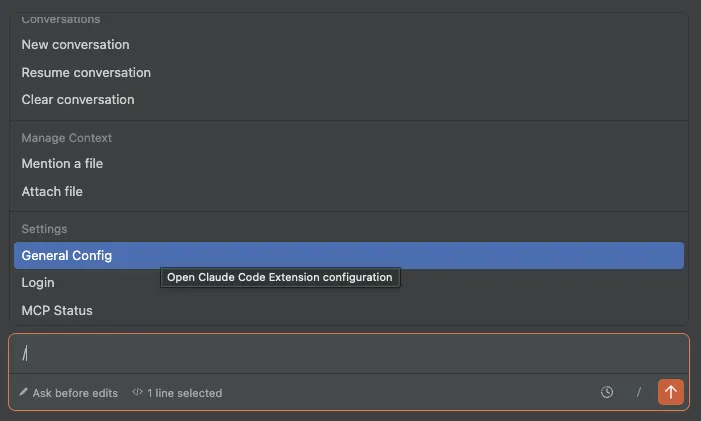
this will be open the vscode settings to the Claude Code General Config section.
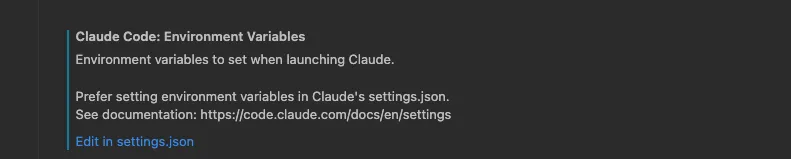
click on
Edit in settings.jsonlink to open thesettings.jsonfile.Add the following configuration to set relaxAI as the LLM provider:
"claudeCode.environmentVariables": [{"name": "ANTHROPIC_API_KEY","value": "rak_vwJnphMl"},{"name": "ANTHROPIC_BASE_URL","value": "https://api.relax.ai"}],"claudeCode.selectedModel": "<model_name>", -
Verify Installation
- Open any file in VS Code
- Look for the Spark icon (✱) in the Editor Toolbar (top-right corner)
- Click the icon to open Claude Code panel
- Try sending a simple prompt like “Explain what this file does”
Getting Started
Section titled “Getting Started”Opening Claude Code
Section titled “Opening Claude Code”The Spark icon (✱) indicates Claude Code throughout VS Code:
Quick Access Methods:
- Editor Toolbar: Click the Spark icon in the top-right corner (requires a file to be open)
- Status Bar: Click ”✱ Claude Code” in the bottom-right corner (works without a file open)
- Command Palette:
Cmd+Shift+P(Mac) orCtrl+Shift+P(Windows/Linux), type “Claude Code” - Keyboard Shortcut:
Cmd+Shift+Esc(Mac) orCtrl+Shift+Esc(Windows/Linux) to open in a new tab
Sending Prompts
Section titled “Sending Prompts”Ask Claude to help with your code or files:
- Basic Prompt: Type your question or request in the chat panel
- File References: Select text in the editor and press
Alt+Kto insert an @-mention with file path and line numbers - Review Changes: When Claude wants to edit a file, it shows a diff and asks for permission
Example Workflow:
1. Select lines 10-25 in your Python file2. Press Alt+K to add @-mention3. Ask: "Why is this function throwing an error?"4. Claude analyzes and suggests fixes with inline diff5. Review and accept/reject changesSecurity Considerations
Section titled “Security Considerations”With auto-edit permissions enabled, Claude Code can modify VS Code configuration files (like settings.json or tasks.json) that VS Code may execute automatically.
Best Practices:
- Enable VS Code Restricted Mode for untrusted workspaces
- Use manual approval mode instead of auto-accept for edits
- Review changes carefully before accepting them
- Consider using initial permission mode settings for controlled environments
Troubleshooting
Section titled “Troubleshooting”Spark Icon Not Visible
Section titled “Spark Icon Not Visible”If you don’t see the Spark icon in the Editor Toolbar:
- Open a file: The icon requires a file to be open
- Check VS Code version: Requires 1.98.0 or higher (Help → About)
- Restart VS Code: Run “Developer: Reload Window” from Command Palette
- Disable conflicting extensions: Temporarily disable other AI extensions (Cline, Continue, etc.)
- Check workspace trust: Extension doesn’t work in Restricted Mode
Alternative: Click ”✱ Claude Code” in the Status Bar (bottom-right)—works without a file open.
Claude Code Never Responds
Section titled “Claude Code Never Responds”If Claude Code isn’t responding:
- Check internet connection: Ensure stable connectivity
- Verify API key: Check your relaxAI API
- Check API URL: Confirm
baseURLis set tohttps://api.relax.ai/v1 - Start new conversation: Try a fresh conversation
- Try the CLI: Run
claudefrom terminal for detailed error messages - Check logs: Use “Claude Code: Show Logs” from Command Palette
Extension Won’t Install
Section titled “Extension Won’t Install”- Ensure VS Code 1.98.0 or higher
- Check VS Code has permission to install extensions
- Try installing from Marketplace website
CLI Not Connecting to IDE
Section titled “CLI Not Connecting to IDE”- Ensure you’re using VS Code’s integrated terminal (not external)
- Verify
codecommand is available: Run from Command Palette → “Shell Command: Install ‘code’ command in PATH” - Check Claude Code is running from within the VS Code workspace
Example Workflows
Section titled “Example Workflows”Code Explanation
Section titled “Code Explanation”1. Open a file you want to understand2. Click the Spark icon (✱) in Editor Toolbar3. Ask: "Explain what this file does and its main components"Debugging Specific Lines
Section titled “Debugging Specific Lines”1. Select problematic lines (e.g., 45-52)2. Press Alt+K to add @-mention3. Ask: "@filename.py:45-52 Why does this throw an error?"4. Review Claude's analysis and suggested fixesMulti-File Refactoring
Section titled “Multi-File Refactoring”1. Ask: "Refactor the authentication logic across these files"2. Review Claude's plan before execution3. Approve/reject each file change individually4. Verify changes with your version controlUninstalling
Section titled “Uninstalling”To remove the Claude Code extension:
- Open Extensions view:
Cmd+Shift+X(Mac) orCtrl+Shift+X(Windows/Linux) - Search for “Claude Code”
- Click Uninstall
To also remove extension data and settings:
rm -rf ~/.vscode/globalStorage/anthropic.claude-coderm -rf ~/.claude # Only if you want to remove all Claude Code dataResources
Section titled “Resources”- Claude Code for VS Code Documentation
- Common Workflows Guide
- Claude Code Settings Reference
- MCP Server Setup
- GitHub Issues
- VS Code Marketplace