
Two-Factor Authentication (2FA)
Overview
Section titled “Overview”Two-factor authentication (2FA) adds an extra layer of security to your relaxAI account by requiring a second form of verification beyond your password. When enabled, you’ll need to provide a time-based one-time password (TOTP) from an authenticator app each time you log in, significantly reducing the risk of unauthorized access even if your password is compromised.
Enabling Two-Factor Authentication (2FA)
Section titled “Enabling Two-Factor Authentication (2FA)”To enable 2FA for enhanced security, go to the Security tab in your account settings. Then click Enable and follow the prompts to set up 2FA using an authenticator app. You can use authenticator apps like Google Authenticator or Bitwarden Authenticator to generate time-based one-time passwords for added security during login. We recommend using Google Authenticator for the best experience.

Confirming Two-Factor Authentication Setup
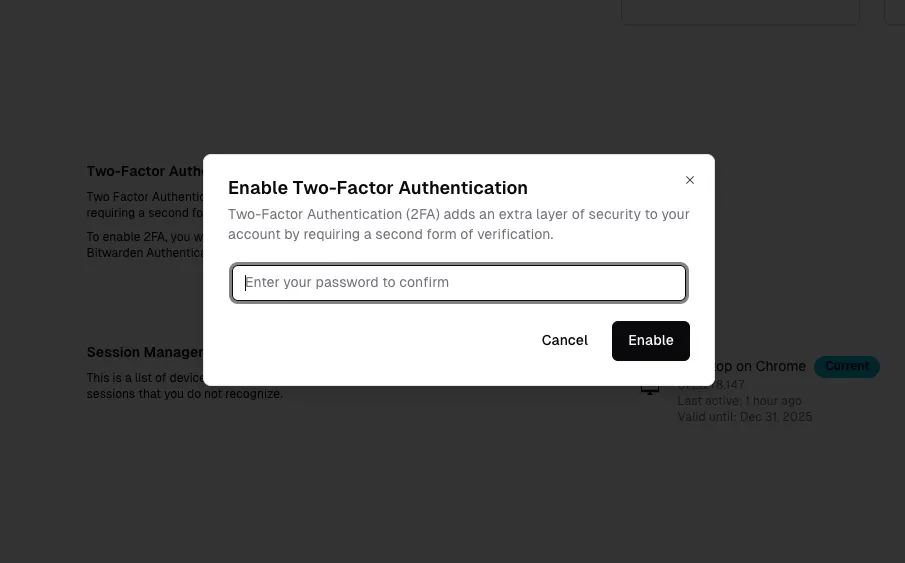
Section titled “Confirming Two-Factor Authentication Setup”After clicking Enable, you’ll be prompted to confirm your password in a modal dialog. This verification step ensures that only the account owner can enable 2FA.
- Enter your current password in the confirmation field
- Click Enable to proceed with the 2FA setup
- Follow the on-screen instructions to scan the QR code with your authenticator app
- Enter the verification code from your authenticator app to complete the setup
Once enabled, you’ll need to provide a code from your authenticator app each time you log in to your relaxAI account.
Setting Up Your Authenticator App
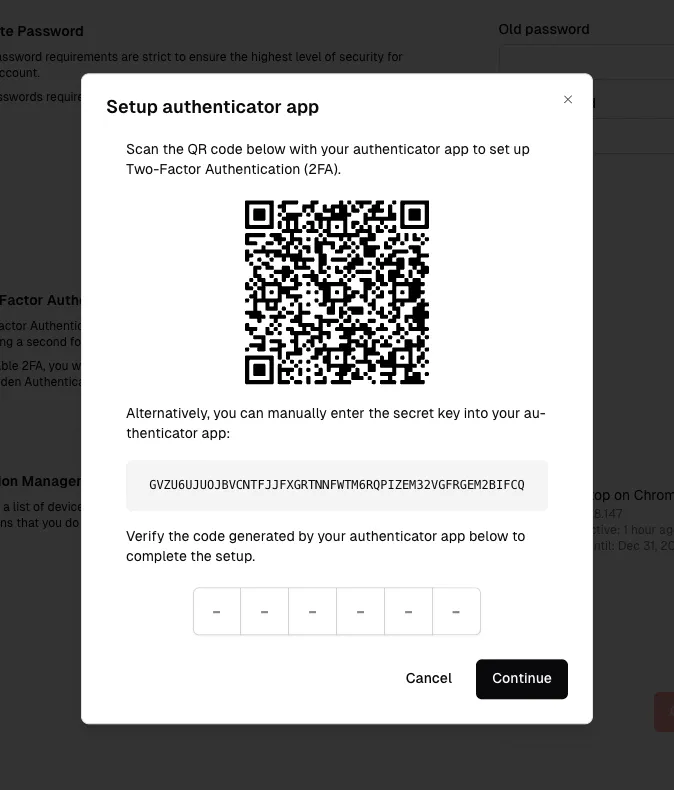
Section titled “Setting Up Your Authenticator App”After confirming your password, a setup modal will appear with instructions for configuring your authenticator app. You have two options to link your account:
Option 1: Scan QR Code
- Open your authenticator app (Google Authenticator, Bitwarden, etc.)
- Select the option to add a new account
- Scan the QR code displayed in the modal
- Your relaxAI account will be automatically added to your authenticator app
Option 2: Manual Entry
- If you can’t scan the QR code, you can manually enter the secret key
- Copy the secret key displayed below the QR code
- In your authenticator app, select manual entry
- Enter the secret key to add your relaxAI account
Complete the Setup
Once your authenticator app is configured, it will begin generating 6-digit verification codes that refresh every 30 seconds. Enter the current code displayed in your app into the verification field to complete the 2FA setup.
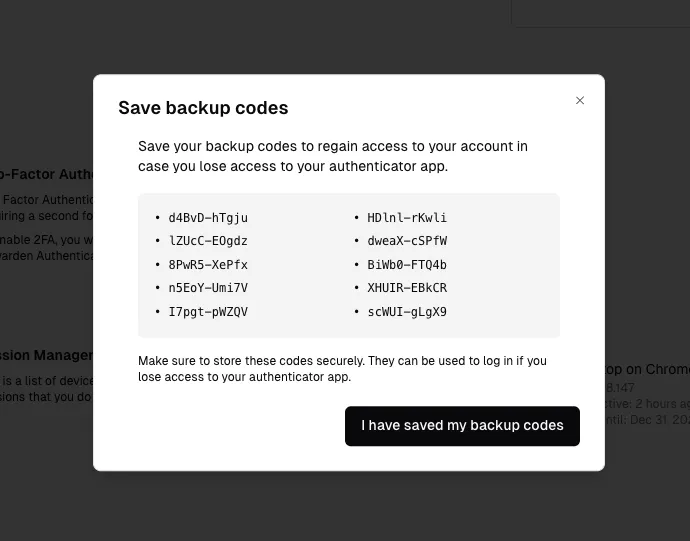
Save Backup Codes
Section titled “Save Backup Codes”After successfully setting up 2FA, you’ll be provided with a set of backup codes. These codes can be used to access your account if you lose access to your authenticator app.